How to Install WiFi at Home with Cam Security Surveillance is more than just setting up an internet connection it’s about creating a reliable, high-speed network that keeps your entire household connected. Learning how to install WiFi at home ensures you have fast, dependable internet for streaming, working, gaming, and running smart devices without interruption. In today’s connected world, WiFi has become essential for modern homes, offering the convenience of wireless access, the flexibility to connect multiple devices anywhere in your space, and the seamless connectivity needed for both productivity and entertainment. With the right setup, your home can enjoy consistent coverage, enhanced security, and a smooth online experience for everyone.
Understanding the Basics Before You Learn How to Install WiFi at Home
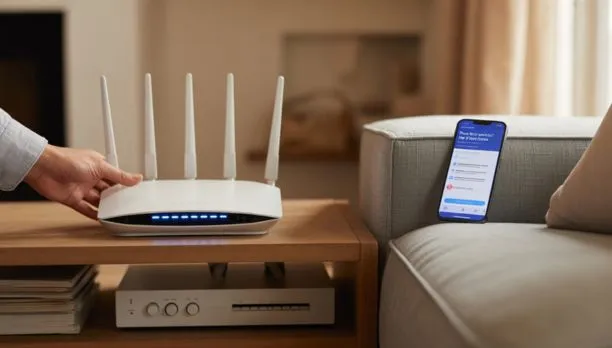
Before jumping into how to install WiFi at home, it’s important to understand what makes WiFi work and why it’s the backbone of modern connectivity. At Cam Security Surveillance, we often see homeowners asking, How do you get the internet? The answer lies in the relationship between your internet service provider, your equipment, and the wireless technology that keeps devices from laptops to AI cameras connected.
Core Components of a Home WiFi Network:
- Modem – Brings internet from your ISP into your home.
- Router – Sends the internet signal wirelessly to your devices.
- ISP – The company providing your internet connection.
- Devices – Laptops, phones, and AI cameras that connect to WiFi.
Understanding these basics helps you see why proper setup is key. Whether you’re connecting a single laptop or powering a full smart home, knowing the difference between wired and wireless internet ensures you get the best performance.WiFi gives you freedom of mobility, access to multiple devices at the same time and allows you to integrate security solutions without cables becoming an obstacle in the way.
Choosing the Right Internet Service Plan
Before beginning with home WiFi installation, the first step should be choosing an Internet Service Plan that meets your needs. Your WiFi performance will depend heavily on how well your ISP delivers connectivity. Whether you’re running wire cameras, streaming movies, gaming online, or connecting multiple smart devices, your plan needs to handle the workload without slowdowns.
Key Factors to Consider:
- Speed – Look for download and upload speeds that match your usage. For streaming, gaming, or using multiple devices, at least 100 Mbps is recommended.
- Data Limits – Some ISPs impose monthly data caps. Choose unlimited data if your household uses the internet heavily.
- Budget – Balance cost with performance. Sometimes a slightly higher price offers much better speeds and reliability.
When comparing ISPs in your area, check customer reviews, availability, and bundled deals. If you’re figuring out how to get WiFi at home, remember that the cheapest option isn’t always the best, especially if you have smart devices or cameras that need WiFi for live monitoring.
Selecting the ideal plan will ensure that once you set up WiFi at home, every wired or wireless device runs seamlessly. A stable and fast connection will make installing WiFi worthwhile, providing reliable performance for work, entertainment and home security purposes.
Getting the Right Equipment
When learning how to install WiFi at home, one of the most important steps is choosing the right equipment. The hardware you use will directly affect your connection speed, coverage, and reliability especially if you’re powering devices like 4K streaming TVs or security systems from professional security camera installers.
Types of Modems and Routers
- Standalone Units – A separate modem and router setup offers better flexibility. You can upgrade each device individually.
- Combo Units – Combines the modem and router in one device, saving space and simplifying setup, but with less customization.
Router Frequency Options
- Single-Band Routers – Operate on the 2.4GHz frequency; affordable but slower, better for basic browsing.
- Dual-Band Routers – Offer both 2.4GHz and 5GHz frequencies for faster speeds and less interference.
- Tri-Band Routers – Include one 2.4GHz and two 5GHz channels, ideal for heavy internet use and 4K IP camera streaming.
Mesh WiFi Systems for Large Homes
Those needing WiFi on a multi-story or large property should opt for mesh systems, which provide seamless coverage with multiple access points, eliminating dead zones.
Buying vs. Renting from Your ISP
- Buying – Costs more upfront but offers better performance, features, and long-term savings.
- Renting – Lower initial cost but limited features and recurring fees.
In home network terminology, the right modem and router are your foundation. Choosing wisely not only supports smooth streaming and browsing but also protects against tamper risks with connected security devices. A strong, reliable setup ensures your how to install WiFi at home process results in fast, secure, and uninterrupted connectivity for every device.
Step-by-Step Guide: How to Install WiFi at Home
Learning how to install WiFi at home is easier than it sounds when you follow a clear, step-by-step approach. Whether you just need a stable internet connection or plan to place cameras around your property for security, having a proper setup ensures reliability and speed. Even if you have equipment professionally installed, understanding the process helps you maintain and troubleshoot your network.
1. Connect the Modem
- Plug your modem into a power outlet.
- Connect the coaxial, DSL, or fiber cable from your wall outlet to the modem.
- Wait for the modem lights to indicate it’s connected to your ISP (this may take a few minutes).
2. Connect the Router
- Use an Ethernet cable to link the modem to the router’s WAN (Internet) port.
- Plug the router into a power outlet.
- Wait until the power and internet lights are stable, showing it’s ready.
3. Configure the WiFi Network
- On a connected device, open a web browser and enter the router’s IP address (found in the manual).
- Set a unique SSID (network name) so it’s easy to recognize.
- Create a strong password to protect your connection.
- Enable WPA2 or WPA3 encryption for maximum security.
4. Test Your WiFi
- Connect a phone, laptop, or tablet to your new network.
- Walk through different areas of your home to check coverage.
- Use an online speed test tool to confirm your internet is running at expected speeds.
Installation of WiFi at home properly will ensure strong, consistent coverage across all of your devices – whether they’re streaming videos, working, or using smart security systems. Once connected, smart devices and cameras can easily be integrated into the network for both functional and security purposes creating a network which serves both functions at once.
Enhancing Your WiFi Performance
Once you’ve mastered how to install WiFi at home, the next step is making sure it performs at its best. A strong connection isn’t just about initial setup it’s about maintaining speed, coverage, and reliability for all your devices. Whether your WiFi installation supports streaming, gaming, or smart home devices like a smoke alarm, these tips can help you get the most out of your network.
- Use WiFi Extenders or Mesh Systems – Extenders boost signal in hard-to-reach spots, while mesh systems create seamless coverage throughout your home.
- Update Firmware Regularly – Keeping your router’s firmware up to date improves performance, fixes bugs, and strengthens security.
- Reduce Network Congestion – Disconnect unused devices, limit heavy downloads during peak hours, and use wired connections for bandwidth-heavy tasks.
Implementing these enhancements into your home WiFi setup can yield faster speeds, reduced dropouts and enhanced performance of everything from video calls to smart devices without interruptions or disruptions.
Final Safety & Security Tips
Completing how to install WiFi at home is just the start, keeping it secure is equally important. A well-protected network not only ensures smooth browsing and streaming but also safeguards devices like those used in home security camera installation, which rely on a stable and private connection.
- Keep Your WiFi Password Private – Share it only with trusted family members to prevent unauthorized access.
- Enable Automatic Router Updates – This keeps your network protected from new security threats without requiring manual checks.
- Monitor Connected Devices – Regularly review which devices are using your network and remove any you don’t recognize.
By adhering to these safety measures, your WiFi setup at home will remain safe, providing peace of mind that everything connected with it remains protected.
Final Thought
Completing how to install WiFi at home with Cam Security Surveillance is all about following the right steps connecting your modem and router, configuring a secure network, testing the signal, and making ongoing adjustments for better performance. From choosing the right plan and equipment to optimizing coverage, every step plays a role in creating a fast, reliable, and secure home network.
To keep your connection running smoothly, perform regular maintenance update firmware, monitor connected devices, and enhance coverage with extenders or mesh systems if needed. If you’d rather skip the hassle, contact Cam Security Surveillance for expert WiFi setup and professional network optimization. We’ll make sure your home internet is secure, fast, and ready for all your devices.
FAQs
What equipment do I need for how to install WiFi at home?
You’ll need a modem, a router (or a combo unit), power cables, and an internet connection from your ISP. For larger homes, WiFi extenders or mesh systems can help improve coverage.
How long does it take to install WiFi at home?
Most basic setups take 30–60 minutes, depending on your equipment and familiarity with the process. Professional installation can be even quicker and ensures optimal performance.
Can I install WiFi at home myself or should I hire a professional?
You can install WiFi at home yourself by following a step-by-step guide, but hiring a professional like Cam Security Surveillance ensures proper setup, stronger coverage, and secure configuration.