You can view many security cameras from a web browser when the camera or recorder supports remote access. The system needs power, network access, and a secure remote viewing method. Some cameras use a manufacturer’s web portal, while others connect through an NVR, DVR, or cloud service. The exact steps vary by brand and model. A stable internet connection also helps prevent delays and dropped video. Before trying remote viewing, make sure you own the system or have permission to access it. Never try to bypass a password or security control.
How to View Security Camera from the Web depends on your camera system. Start by connecting the camera or recorder to the internet, then use its approved web portal or remote viewing service.
Can You View a Security Camera From the Web?
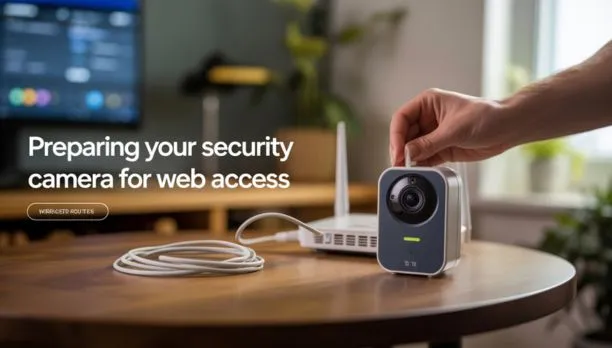
Yes, many modern security cameras can be viewed through the internet. The camera first connects to your home or business network. That network then provides a path to the manufacturer’s remote viewing service or another approved access method. Some systems offer browser access through a manufacturer’s website. Others rely mainly on a mobile app.
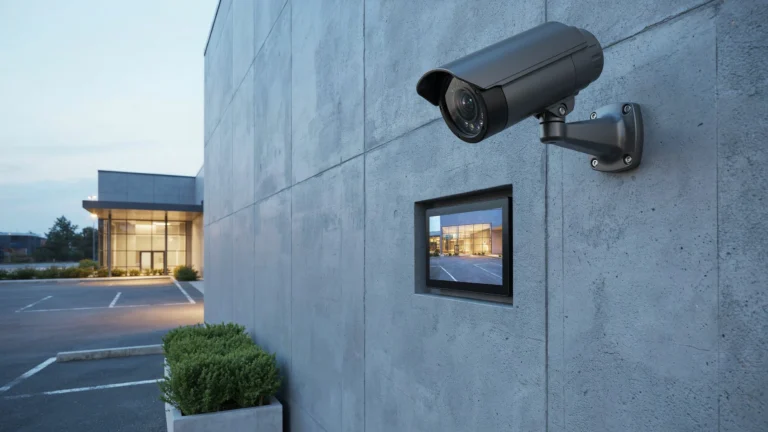
An NVR or DVR can also provide remote viewing. In this setup, your cameras connect to the recorder, and the recorder handles remote access.
This creates two common setups:
- Camera connected directly to the network
- Cameras connected to an NVR or DVR
The first option is common with standalone IP cameras. The second is common with multi-camera CCTV systems. Remote viewing is different from watching a camera on the same Wi-Fi network. Local viewing stays inside your home or business network. Remote viewing lets an authorized user check video from another location.
What You Need to View a Security Camera Online
Before setting up remote viewing, check that your system has the required parts.
1. An Internet-Connected Camera or Recorder
The camera or NVR needs network access. A camera with no network connection cannot send live video to a remote viewer.
2. A User Account
Many current camera systems use a manufacturer account. You sign in through an approved app or web portal.
3. A Stable Internet Connection
Remote video uses upload bandwidth at the camera’s location. A weak connection can cause buffering, low video quality, or disconnects.
4. Remote Access Support
Check your camera or recorder’s manual. Some systems support browser viewing, while others only support apps.
5. Your Login Details
Use the correct username and password. Never share your camera password with people who do not need access.
How to View a Security Camera From the Web
The exact process changes between brands, but the basic workflow is similar.
Step 1: Confirm the Camera Is Online
Check the camera’s status in its app or recorder. Make sure it has power and can communicate with the network. If the camera is offline locally, remote viewing will not work.
Step 2: Connect the Camera to Your Network
A wired IP camera may connect through Ethernet or PoE. A wireless camera connects through Wi-Fi. For wireless systems, place the camera where the Wi-Fi signal remains strong. Thick walls and long distances can reduce connection quality.
Step 3: Enable the Manufacturer’s Remote Service
Many newer systems provide remote access through a cloud service. You normally enable the feature through the camera app or recorder settings. Follow the manufacturer’s instructions for your exact model.
Step 4: Open the Official Web Portal
If browser access is supported, use the manufacturer’s official website or remote viewing portal. Avoid websites that claim they can show random cameras online. A search for view online security cameras can return public camera feeds, but you should not use it to access private cameras.
Step 5: Sign In
Enter your account details and complete any security check. If two-factor authentication is available, turn it on. It adds another layer of protection to your account.
Step 6: Select Your Camera
After signing in, open the live-view section. Choose the camera you want to watch. Depending on the system, you may also see recorded footage, camera status, audio controls, or other settings.
How to View an NVR or DVR Camera Over the Internet
An NVR or DVR changes the setup because the cameras usually connect to the recorder first. An NVR commonly works with IP cameras. A DVR is often used with traditional CCTV cameras. The recorder stores video and manages the cameras. If remote viewing is supported, the recorder can connect to an approved remote service.
A typical setup looks like this:
Camera → NVR/DVR → Router → Internet → Authorized Viewer
The exact connection method depends on the manufacturer. Many current systems use cloud-based remote access. This can be easier to manage than exposing the recorder directly to the public internet. Older systems may use more advanced network settings. Those systems should be configured carefully because an incorrect setup can create security risks.
Can You View a Security Camera Without Wi-Fi?
Yes. A security camera does not always need Wi-Fi. For example, an IP camera can use an Ethernet cable. A PoE camera can receive both power and network data through one Ethernet cable.
However, there is an important difference between Wi-Fi and internet access. You can watch a wired camera without Wi-Fi if it is connected to your local network. But remote viewing from another location still needs an internet connection at the camera’s site. This makes wired cameras useful for locations where Wi-Fi is weak or unreliable.
Can You View Security Cameras From Another Location?
Yes. Remote access allows an authorized user to view cameras from another location. For example, a business owner may check a store from home. A homeowner may check an entry camera while traveling.
The system needs to remain connected and online.
A useful remote setup includes:
- Reliable internet at the property
- A camera or recorder that supports remote access
- A secure user account
- Updated camera or recorder software
- Strong account security
The quality of remote viewing also depends on upload speed. A camera sending high-resolution video needs more network capacity than one using a lower setting.
How to View Security Camera Footage Online
Live viewing and recorded playback are two different features. Live viewing shows what the camera sees right now. Playback lets you search video stored on an NVR, DVR, SD card, or cloud service.
Most systems with playback allow you to:
- Select a camera.
- Choose a date.
- Select a time.
- Move through the recorded timeline.
- Save or export footage when supported.
For example, if an event happened at 8:30 PM, you can select that date and search around that time. Storage settings matter too. A camera may overwrite older footage when its storage becomes full. If you need recordings for business or legal reasons, check your retention settings before an incident happens.
Why Can’t I View My Security Camera Online?
Remote viewing problems usually have a simple cause.
The Camera Is Offline
Check power and network status first. A camera that cannot connect locally cannot normally be viewed remotely.
The Internet Is Down
Test another device at the property. If other devices cannot access the internet, check the router or internet service.
The Remote Service Is Disabled
Open the camera or NVR settings and check whether remote access is enabled.
Your Account Has a Problem
Check your username, password, account permissions, and two-factor authentication.
The Camera Has Weak Wi-Fi
Move the camera closer to an access point when possible. If the connection improves, coverage may be the problem.
The Browser Is Not Supported
Some camera systems have limited browser support. Try the manufacturer’s recommended browser or current web portal.
Network Settings Are Blocking Access
Firewalls and network rules can affect remote connections. Avoid changing advanced settings without understanding their effect.
Is It Safe to View Security Cameras Over the Internet?
Remote camera access can be safe when configured correctly. The biggest risks often come from weak passwords, outdated devices, poor network settings, or unnecessary public exposure.
Use these basic security steps:
- Change default passwords.
- Use a unique password.
- Turn on two-factor authentication.
- Keep firmware updated.
- Use the manufacturer’s official access method.
- Remove users who no longer need access.
- Review account and device activity.
- Secure your home or business router.
Avoid entering camera login details into unknown websites. You may see searches for an ip address camera viewer online. An IP address alone does not give you permission to access a camera. Trying to enter another person’s camera system without permission is unauthorized access.
How to Secure Your Security Camera for Remote Viewing
Security should be part of the setup from the beginning. Start with the camera manufacturer’s recommended remote access method. Cloud services can reduce the need for complex network changes, depending on the system. Use a strong password that you do not reuse on other websites. Enable two-factor authentication when available. Even if someone learns your password, the extra check can help protect your account. Keep the camera and recorder firmware updated. Updates can fix security problems and improve system stability.
You should also review who has access. A family member, employee, or security manager may need viewing rights. Someone else may not need access at all. For businesses, use separate accounts when the system supports them. This makes it easier to remove access when an employee leaves.
Web Browser vs. Mobile App for Security Cameras
Both methods can be useful.
| Feature | Web Browser | Mobile App |
| Live viewing | Often supported | Usually supported |
| Playback | Depends on system | Usually supported |
| Setup | Varies by brand | Often easier |
| Alerts | Limited on some systems | Usually strong |
| Remote viewing | Supported on some systems | Common |
| Multiple cameras | Often supported | Usually supported |
A browser can be useful when working at a computer. A mobile app is often easier for quick checks while away from the property. The best option depends on the camera manufacturer.
Can You View Someone Else’s Security Camera Online?
You should only access cameras you own or have permission to use. Some cameras may be accidentally exposed online due to poor network settings. That does not make them available for public use.
Do not attempt to guess passwords, bypass login controls, or exploit an exposed camera. This matters for both privacy and security. If you manage a camera system, check that remote access is protected. Remove old accounts and update passwords when needed.
When Should You Contact a Professional?
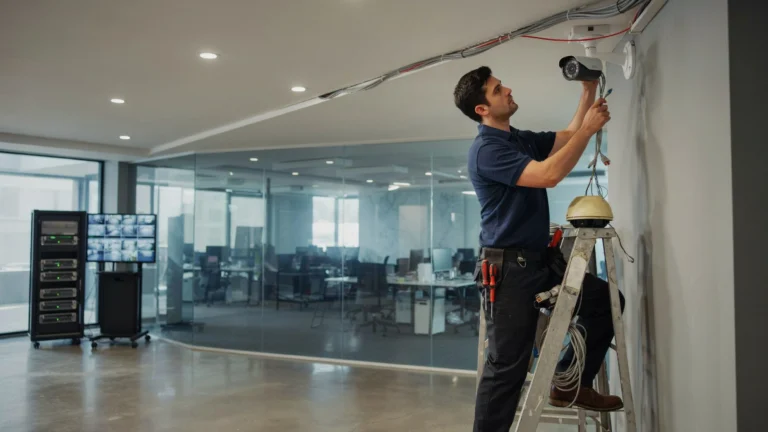
Contact a professional when remote access keeps failing after basic checks. Professional help is useful when several cameras have problems, an NVR needs setup, or the property has a complex network. It is also helpful when you need remote viewing for a business, apartment building, warehouse, or large home.
A professional can review camera locations, network coverage, cabling, recording equipment, and remote access settings.
If you need security camera installation indianapolis, Cam Security Surveillance can help plan and install a system with secure remote viewing in mind. The goal is not just to make a camera visible online. The system should record properly, protect your footage, and remain easy to manage.
Conclusion
How to View Security Camera from the Web starts with a camera or recorder that supports secure remote access. Connect the system to your network, enable the approved remote service, sign in through the official portal, and select your camera. If remote viewing fails, check power, internet access, Wi-Fi strength, account settings, and browser support.
Security should remain a priority. Use strong passwords, two-factor authentication, current firmware, and trusted access methods. Cam Security Surveillance can help you choose and install a security camera system that supports reliable remote monitoring. Contact us today to discuss your camera needs and remote viewing options.
FAQs
Can I view my security camera from a web browser?
Yes, if the camera or recorder supports browser-based remote viewing. Some systems require a manufacturer’s web portal, while others rely mainly on a mobile app.
How do I access my security camera over the internet?
Connect the camera or NVR to the internet, enable its approved remote access feature, and sign in through the manufacturer’s authorized web portal or service.
Can I view a security camera from another location?
Yes. A camera or recorder with secure remote access can usually be viewed from another location as long as the system remains online.
Can I view a security camera without Wi-Fi?
Yes. Wired Ethernet and PoE cameras can operate without Wi-Fi. Remote viewing still requires an internet connection at the property.
Why can’t I view my security camera online?
Check the camera’s power, internet connection, Wi-Fi signal, account credentials, remote access settings, firmware, and browser compatibility.
Is it safe to view security cameras over the internet?
It can be safe when remote access is properly secured. Use strong passwords, two-factor authentication, updated firmware, and the manufacturer’s official remote access service.
Can I view my NVR camera from a web browser?
Many NVR systems support browser-based access, but support varies by manufacturer and model. Check the NVR’s official documentation for the supported method.
Can I access a security camera using its IP address?
Some systems support local IP-based access, but you should only access cameras you own or have permission to manage. Do not use an IP address to bypass security controls.
How can I view recorded security camera footage online?
Sign in to your camera or NVR’s approved remote service, select the camera, choose the date and time, and use the playback feature if your system supports it.