
Your security camera is recording nothing, and the SD card slot seems to be ignoring the card completely. This is more common than you think, and most of the time, the fix is simple. You don’t always need a new camera or a new card.
When a security camera doesn’t detect an SD card, it usually comes down to three things: a dirty slot, a wrongly formatted card, or a card that your camera simply doesn’t support. This guide walks you through every cause and every fix, step by step.
Why Your Security Camera Needs an SD Card
Cloud storage is convenient, but it has limits. The Internet goes down. Monthly fees add up. And if someone cuts your power or internet, you lose footage.
An SD card stores footage locally, right inside the camera. No internet needed. No monthly cost. And you own every second of the video.
Here’s what local SD card storage gives you:
- 24/7 continuous recording without depending on Wi-Fi
- Loop recording, so the camera overwrites old footage automatically
- Instant playback without logging into an app or portal
- Backup footage even during outages or cyberattacks on the cloud
For homeowners, small businesses, and anyone who wants reliable footage, an SD card is still one of the best options available.
Security Camera Doesn’t Detect an SD Card – Main Causes
Before you fix the problem, you need to know what’s causing it. Here are the most common reasons a camera won’t read an SD card explained by Cam Security Surveillance.
1. Wrong SD Card Format
Most security cameras require cards formatted in FAT32 or exFAT. If your card is formatted in NTFS (common on Windows), the camera simply won’t recognize it.
2. SD Card Capacity Too High
Many budget and mid-range cameras only support cards up to 32GB, 64GB, or 128GB. If you insert a 256GB or 512GB card into a camera that only supports 128GB, the camera won’t read it at all.
3. Corrupted File System
If the camera lost power during a write cycle, or the card was removed while recording, the file system can become corrupted. The camera may detect the card physically but fail to mount it.
4. Dirty or Damaged Card Slot
Dust, moisture, and debris inside the SD card slot can interrupt the electrical connection. This is especially common in outdoor cameras.
5. Firmware Bug
Outdated camera firmware can cause compatibility issues with newer SD cards. Camera manufacturers push firmware updates specifically to fix these bugs.
6. Incompatible Card Class or Speed
Security cameras recording in HD or 4K need cards with a write speed of at least Class 10 or UHS-I. A slow card causes the camera to either reject it or constantly buffer.
7. Faulty SD Card
SD cards don’t last forever. After thousands of write cycles, the card itself can fail. If you’ve used the same card for 2 to 3 years, it may simply be worn out.
8. Physical Damage to the Card
Bent pins, cracked housing, or water exposure can cause card failure. Even a small bend in the card can stop it from making proper contact inside the slot.
How to Fix a Security Camera That Doesn’t Detect an SD Card
Try these fixes in order. Start with the simplest ones first.
Fix 1: Power Cycle the Camera
Turn the camera off completely. Remove the SD card. Wait 30 seconds. Reinsert the card and power the camera back on. This clears temporary memory errors that block card detection.
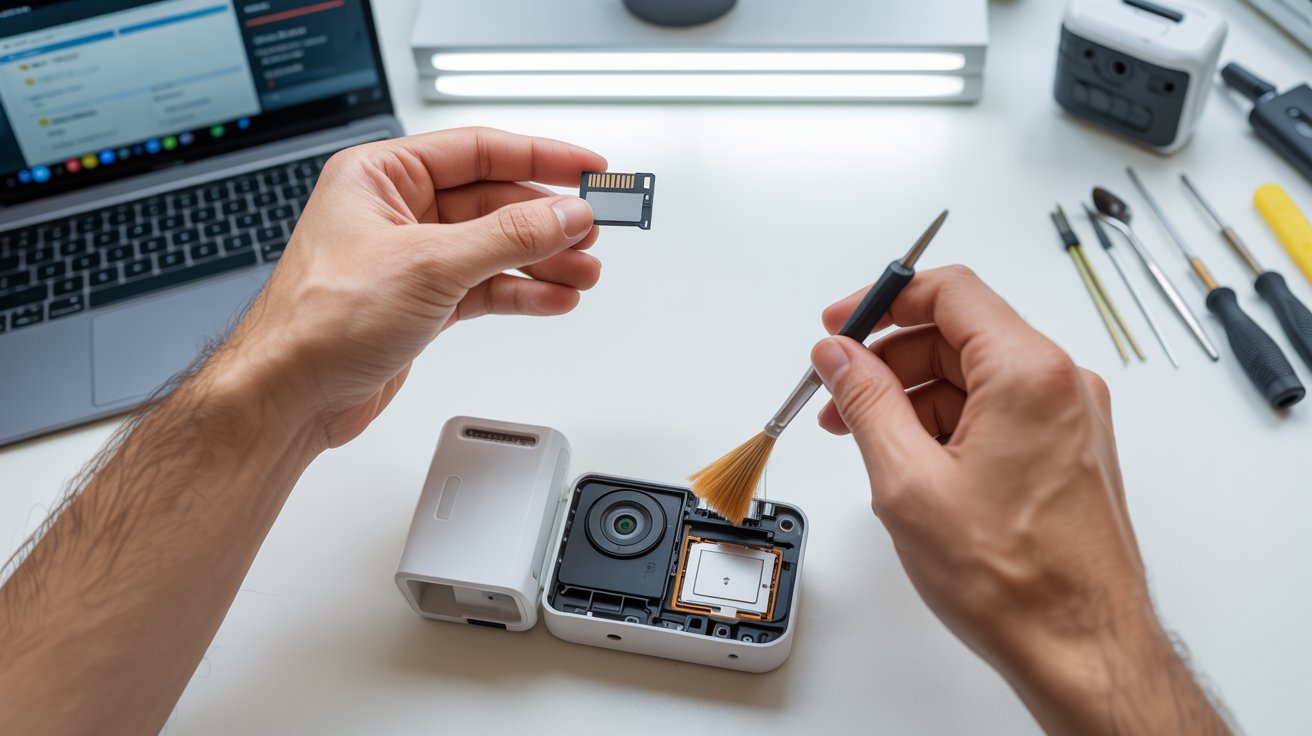
Fix 2: Clean the SD Card and Slot
Use a dry microfiber cloth to clean the metal contacts on the SD card. For the camera slot, use a can of compressed air to blow out any dust. Never use water or liquid cleaners inside the slot.
Fix 3: Try the Card in Another Device
Insert the SD card into a laptop or a card reader. If the computer doesn’t recognize it either, the card is likely corrupted or damaged, not the camera.
Fix 4: Check Camera’s Maximum SD Card Support
Check your camera manual or the manufacturer’s website. Look for the maximum supported SD card size. If your card exceeds that limit, you need a smaller one.
Fix 5: Format the SD Card Correctly
This is the fix that works most of the time. See the full step-by-step process in the next section.
Fix 6: Update Camera Firmware
Log into your camera’s app or web interface. Look for a firmware update option under Settings. Install any available updates and restart the camera. Then recheck if the camera now detects the SD card.
Fix 7: Try a Different SD Card
If none of the above fixes work, try a brand-new SD card from a trusted brand like SanDisk or Samsung. If the new card works, your old one is the problem.
Need help beyond a DIY fix? If you’re in Indiana, the team at Cam Security Surveillance offers professional CCTV installation services Indianapolis and can handle any hardware issue with your security system on-site.
How to Format an SD Card for Security Cameras (Step-by-Step)
Formatting the SD card is the single most effective fix when your camera is not reading an SD card. Here’s how to do it correctly.
On Windows:
- Insert the SD card into your computer using a card reader
- Open File Explorer and right-click the SD card drive
- Click Format
- Set the file system to FAT32 (for cards 32GB and under) or exFAT (for cards 64GB and above)
- Check the Quick Format box
- Click Start and wait for it to finish
- Safely eject the card and insert it into your camera
On Mac:
- Insert the SD card and open Disk Utility
- Select the SD card from the left panel
- Click Erase
- Choose MS-DOS (FAT) for FAT32 or ExFAT for larger cards
- Click Erase and wait for it to complete
- Eject and reinsert into the camera
Directly From the Camera:
Many cameras let you format the SD card from within the app or camera settings. This is the best option because it formats the card exactly the way the camera needs it. Look for Storage Settings or SD Card Management in your camera’s app.
Warning: Formatting erases all data on the card. Back up any footage before you format.
Best SD Cards for Security Cameras
Not all SD cards are built for security cameras. Regular cards are made for phones and cameras that don’t record 24/7. Security camera SD cards need to handle constant write cycles.
Here are the best options based on reliability and compatibility:
| SD Card | Capacity | Best For |
| SanDisk High Endurance | 32GB – 256GB | 24/7 outdoor cameras |
| Samsung PRO Endurance | 32GB – 256GB | Continuous loop recording |
| Kingston Canvas Go Plus | 64GB – 512GB | High-resolution cameras |
| Lexar High-Performance 633x | 32GB – 256GB | Budget-friendly option |
Look for these specs when buying:
- Class 10 or UHS-I minimum write speed
- “High Endurance” label, which means it handles constant recording
- Rated for at least 10,000 hours of continuous recording
- Capacity within your camera’s supported range
Common Mistakes to Avoid
Many people fix one problem and create another. Here’s what not to do:
Using a regular camera SD card: These aren’t built for 24/7 recording. They fail within months.
Buying the biggest card available: Bigger is not always better. If your camera supports 128GB max, a 256GB card will cause a camera won’t read an SD card error every time.
Skipping the format step: Never put a brand-new card straight into a security camera without formatting it first. Factory formatting from the manufacturer may not match what your camera needs.
Pulling the card out while recording: Always stop recording or power down the camera before removing the SD card. Removing it mid-record is the top cause of file system corruption.
Ignoring firmware updates: Manufacturers release updates that fix card compatibility bugs. Skipping updates keeps those bugs in place.
When to Replace Your SD Card
SD cards have a limited lifespan. Even high-endurance cards eventually wear out.
Replace your SD card if:
- The camera detects it one day but not the next
- Footage files appear corrupted or won’t play back
- The card has been in use for more than 2 years of continuous recording
- You see error messages like “card full” even after deleting footage
- The card fails in multiple devices, not just the camera
A high-endurance 128GB card costs around $20 to $35. Replacing it every 2 years is far cheaper than losing critical footage.
SD Card vs Cloud Storage – Which Is Better?
Both options have real advantages. The right choice depends on your setup.
| Feature | SD Card | Cloud Storage |
| Monthly cost | None | $3 – $30/month |
| Works without internet | Yes | No |
| Risk of physical theft | Yes (if camera stolen) | No |
| Storage limit | Card capacity | Subscription plan |
| Easy remote access | Limited | Yes |
| Works during power outage | No (if camera loses power) | No |
Best recommendation: Use both. Store footage locally on an SD card for reliability, and use cloud backup for remote access and off-site storage. Most modern cameras support both simultaneously.
Troubleshooting Tips for Specific Camera Brands
Different brands handle SD card issues differently. Here’s what to check based on your camera brand.
Wyze Cameras
Wyze cameras require a Class 10 micro SD card. If the card is not detected, go to Account > Camera Settings > Local Storage and tap Format. Wyze also caps support at 32GB for older models.
Ring Cameras
Most Ring cameras don’t use SD cards. They rely on cloud storage. If you’re using a Ring Indoor Cam or Stick Up Cam, check the product page to confirm whether SD card support is included.
Reolink Cameras
Reolink supports cards up to 256GB. If your SD card is not working in your Reolink camera, open the Reolink app and go to Device Settings > Storage and format the card from there. Reolink firmware updates often fix detection issues.
Hikvision and Dahua Cameras
These professional-grade cameras typically require FAT32 for cards under 32GB and exFAT for larger cards. Access the web interface using the camera’s IP address. Go to Configuration > Storage > Storage Management to format and check card status.
Blink Cameras
Blink uses a USB-connected Sync Module for local storage, not a direct SD slot. If your Blink system isn’t reading storage, check the Sync Module 2 connection and reformat the USB drive.
Arlo Cameras
Arlo cameras generally rely on cloud storage. However, the Arlo Go and some Pro models support microSD. If my SD card not working in my Arlo camera is your question, check if your specific model supports local storage first.
When to Call a Professional
Sometimes the issue is beyond a card swap or a format job. Call a professional if:
- The SD card slot is physically broken or bent
- The camera detects no cards at all, even brand-new ones
- The camera was exposed to water or extreme temperatures
- You’ve tried 3+ cards and 2+ firmware updates with no success
- The camera is part of a larger NVR or DVR system with network issues
Trying to repair a camera slot yourself can void the warranty and cause more damage. A trained technician can diagnose whether the problem is the card, the slot, or the camera’s internal board. For reliable help, consider professional cctv installation services Indianapolis to ensure the issue is fixed safely and correctly.
Conclusion
When your security camera doesn’t detect an SD card, it’s almost always fixable. Start with the basics: check card compatibility, clean the slot, and format the card correctly. If that doesn’t solve it, update the firmware or try a new card.
The most important thing is not to ignore it. A camera without working local storage leaves you with gaps in your footage, and those gaps could matter when you need them most.
Take 10 minutes to run through the steps above. In most cases, that’s all it takes—if the issue still isn’t resolved, contact us for expert help and a quick solution.
FAQs
Why does my security camera keep saying the SD card is not detected?
The most common reasons are an incompatible card format, a card that exceeds the camera’s capacity limit, or a corrupted file system. Format the card using FAT32 or exFAT and reinsert it.
Can I use any SD card in a security camera?
No. Security cameras need high-endurance cards rated for continuous recording. Regular photo or video SD cards wear out quickly under 24/7 write cycles.
What format should an SD card be for a security camera?
Use FAT32 for cards 32GB and under. Use exFAT for cards 64GB and above. Always confirm with your camera’s manual.
How often should I replace my security camera SD card?
Every 1 to 2 years if the camera records continuously. High-endurance cards from SanDisk or Samsung may last longer, but regular checks are important.
Does formatting an SD card delete all footage?
Yes, formatting erases everything on the card. Always back up important footage before formatting.
Why is my camera not reading the SD card after a firmware update?
Some firmware updates change how the camera handles storage. After an update, format the SD card directly from within the camera app to reset the connection.
What’s the maximum SD card size for security cameras?
It varies by brand and model. Many cameras support up to 128GB or 256GB. Check your camera’s spec sheet before buying a high-capacity card.
Can a bad SD card damage my security camera?
A bad card won’t damage the camera, but it can cause the camera to freeze, reboot, or stop recording. Always use a quality card from a trusted brand.