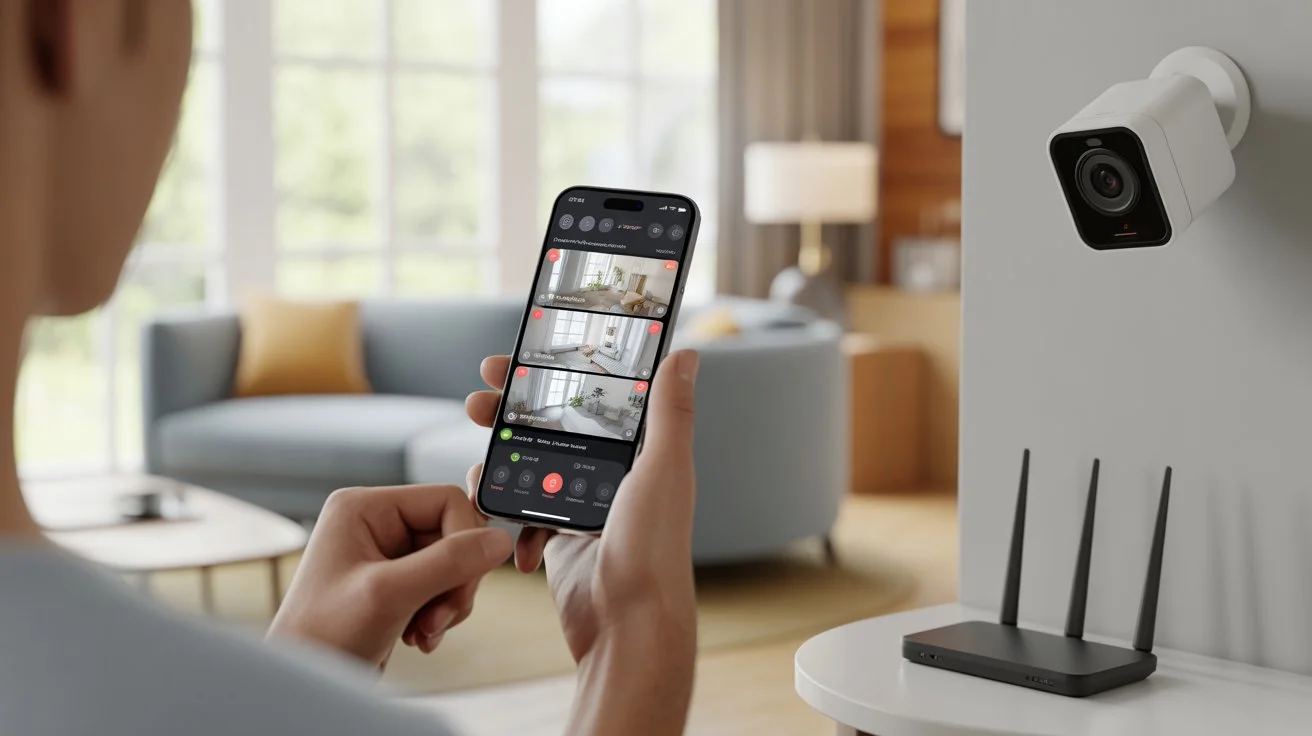
You can connect most modern security cameras to your phone in minutes. Install the camera app, connect the camera to Wi-Fi, scan a QR code, and view live video. This gives you real-time access, alerts, and playback from anywhere.
In this guide, you will learn How to Connect a Security Camera to a Phone step by step. We will keep it simple, clear, and practical so you can set up your system without stress.
Types of Security Cameras That Connect to Phones
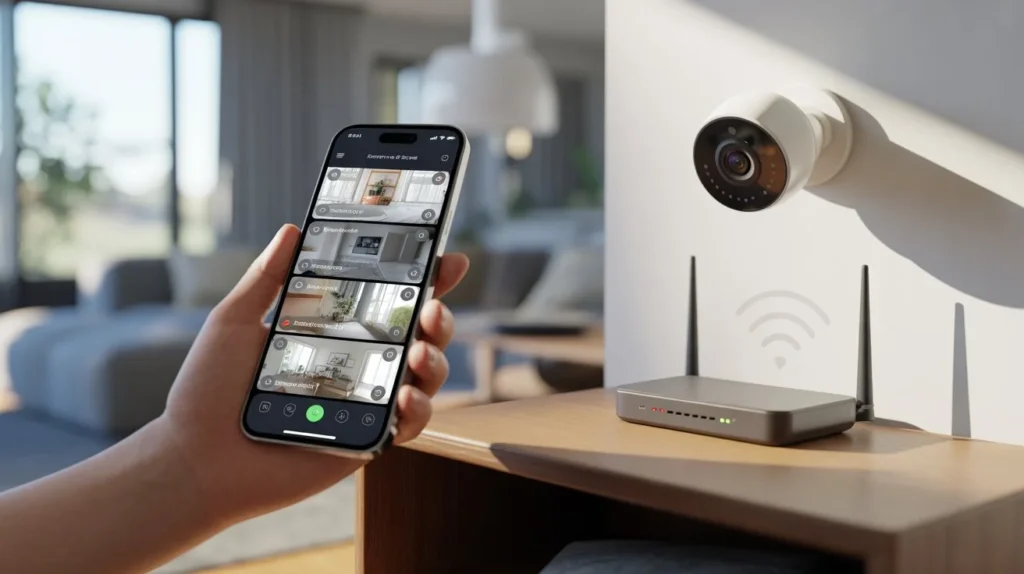
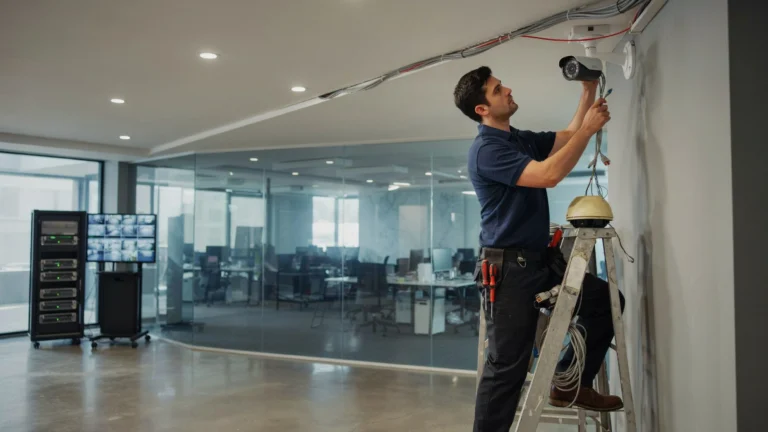
Not all cameras connect the same way. Knowing your type saves time and helps avoid setup issues. With guidance from Cam Security Surveillance, you can choose the right camera type and ensure proper installation for smooth performance and reliable security.
1. Wi-Fi Security Cameras
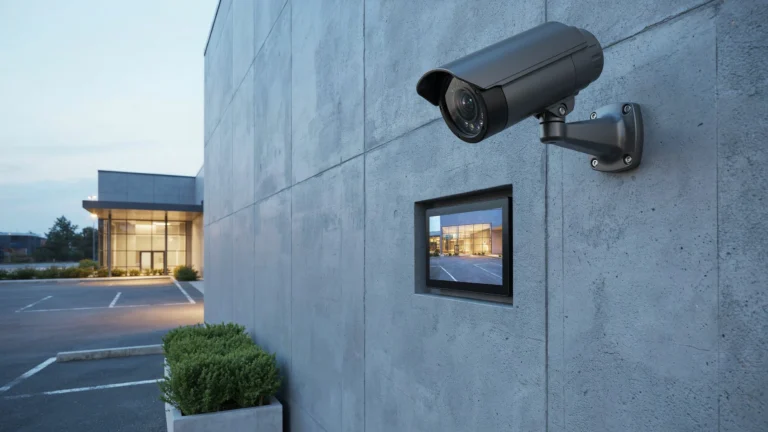
These are the most common. They connect directly to your home Wi-Fi. Best for homes and small offices.
2. Wired IP Cameras
These use Ethernet cables. They still connect to apps through a router. More stable than Wi-Fi.
3. CCTV Cameras with DVR/NVR
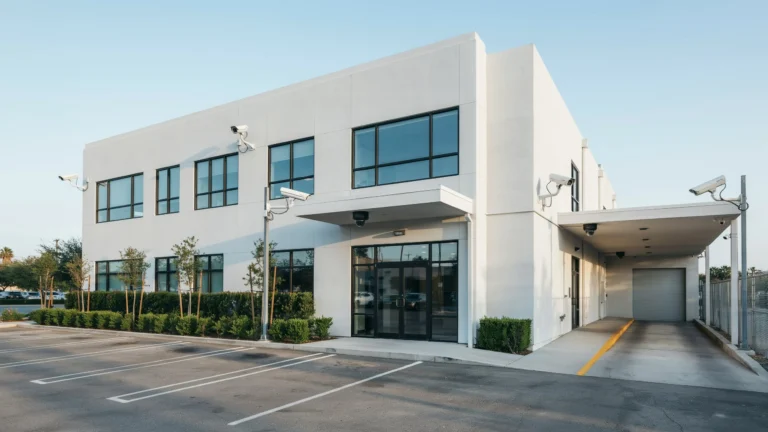
These use a recorder box. The DVR or NVR connects to the internet. You view cameras through a mobile app.
4. Smart Cloud Cameras
These store video online. You can access them from anywhere. Great for remote viewing.
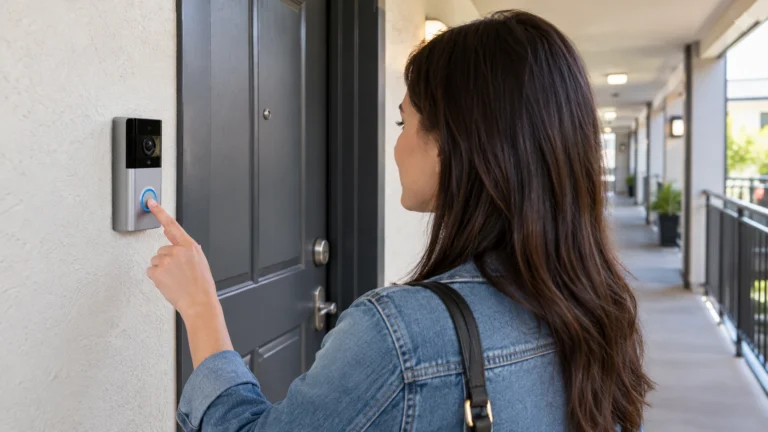
Each option lets you link security cameras to mobile phone, but the setup steps differ slightly.
Requirements Before Connecting a Security Camera to Your Phone
Before you start, check these basics:
- Stable Wi-Fi or internet connection
- A smartphone (Android or iPhone)
- Camera app from the manufacturer
- Power supply for the camera
- Login details or account setup
If you skip these, your setup may fail. Most issues happen here.
How to Connect a Wi-Fi Security Camera to Your Phone (Step-by-Step)
This is the easiest method and works for most users.
Step 1: Download the App
Start by finding the official app for your camera. You can usually find the app name in the user manual or on the box. Go to the Google Play Store or Apple App Store and install it. Always use the official app to avoid security risks and compatibility issues.
Step 2: Create an Account
Open the app and sign up using your email or phone number. Choose a strong password that includes letters and numbers. Some apps may send a verification code to confirm your account. This step is important because your account will store and manage your camera settings.
Step 3: Power On the Camera
Plug your camera into a power source and turn it on. Wait for a few seconds until the indicator light starts blinking or changes color. This light shows the camera is ready to connect. If nothing happens, check the power cable and outlet.
Step 4: Connect to Wi-Fi
Open the app and tap on “Add Device” or “+” icon. Follow the instructions on the screen. Select your home Wi-Fi network and enter the correct password. Make sure your phone is connected to the same Wi-Fi network for a smooth setup.
Step 5: Scan QR Code or Enter Device ID
Most cameras will display a QR code on the screen or in the app. Use your phone to scan it. This helps the app find your camera quickly. If your camera does not have a QR code, you can enter the device ID manually, which is usually printed on the camera.
Step 6: Test Live View
Once the setup is complete, open the live view option in the app. You should now see real-time video from your camera. Check if the video is clear and stable. You can also test features like sound, motion alerts, and playback to make sure everything works properly.
This is the simplest way to understand How to Connect a Security Camera to a Phone for beginners.
How to Connect CCTV Camera to Phone via DVR/NVR
If you use a CCTV system, the process is slightly different.
Step 1: Connect DVR/NVR to Internet
Start by connecting your DVR or NVR to your internet router using a LAN cable. Make sure the cable is firmly plugged in on both ends. Once connected, check that the device shows an active network status. Without internet access, remote viewing will not work.
Step 2: Enable Remote Access
Go to the settings menu on your DVR/NVR. Look for options like “Network,” “P2P,” or “Cloud Access.” Turn this feature on. This step allows your system to connect with your phone from anywhere. Some systems may show a status like “Online” when it is ready.
Step 3: Install Mobile App
Download the official mobile app for your DVR or NVR brand from the Play Store or App Store. Using the correct app ensures better compatibility and full access to features. Avoid random third-party apps unless your device supports them.
Step 4: Add Device
Open the app and tap “Add Device” or a similar option. You can scan the QR code shown on your DVR screen or enter the IP address or serial number manually. This step links your recorder to your phone.
Step 5: View Cameras
After adding the device, you can see all connected cameras on your phone. Open the live view to monitor your property in real time. You can also switch between cameras, check recordings, and manage settings directly from the app.
This setup is common for businesses. It allows multiple cameras on one screen.
How to Connect a Security Camera Without Wi-Fi
You can still connect cameras without a home network.
Use a Mobile Hotspot
Turn your phone into a hotspot. Connect the camera to it. This works for temporary setups.
Direct LAN Connection
Connect the camera to your phone using a router or adapter.This method is more technical but stable.
Local Storage Cameras
Some cameras record to SD cards. You can sync clips later to your phone.
Important Tip
Offline setups have limits. You may not get live alerts.If you are planning a full setup, consider expert help like Cam Security Surveillance. They also offer security systems installation in Indianapolis for reliable and secure connections.
This section is key when learning How to Connect a Security Camera to a Phone in areas with weak internet.
Best Apps for Viewing Security Cameras on Phone
The app you choose matters a lot.
Manufacturer Apps
These apps are designed specifically for your camera brand, so they work smoothly with your device. They give you full access to all features like live view, motion alerts, video playback, and cloud storage. Setup is usually faster because the app is built for that exact camera. You also get better updates, security patches, and customer support from the brand.
Third-Party Apps
These apps are useful if you are using cameras from different brands in one setup. Instead of switching between multiple apps, you can manage everything in one place. However, not all cameras are compatible, so always check before installing. Some features like advanced alerts or cloud storage may be limited compared to official apps.
Key Features to Look For
- Live video streaming
- Motion alerts
- Video playback
- Cloud storage
- Multi-camera support
A good app makes your camera that links to phone easier to manage.
Common Problems and Troubleshooting
Even simple setups can fail. Here are common fixes:
Camera Not Connecting to Wi-Fi
- Check your password
- Move camera closer to router
- Restart both devices
App Not Detecting Camera
- Reset the camera
- Update the app
- Check permissions
Poor Video Quality
- Reduce distance from router
- Upgrade internet speed
- Lower video resolution
Login Issues
- Reset your password
- Clear app cache
Fixing these problems will help you keep a stable room camera connect to phone experience.
Security Tips for Safe Mobile Access
Your camera should protect you, not expose you.
- Use strong passwords
- Enable two-factor authentication
- Update firmware often
- Avoid public Wi-Fi
- Limit access to trusted users
Security is often ignored. But it matters as much as setup.
Benefits of Connecting Security Cameras to Your Phone
Once connected, you get real value:
1. Real-Time Monitoring
You can check your home or business anytime from your phone. Whether you are at work or traveling, you get instant access to live video. This helps you stay aware of what is happening at all times.
2. Instant Alerts
Most cameras send alerts when they detect motion or unusual activity. You will get a notification on your phone right away. This allows you to act quickly if something seems wrong.
3. Remote Playback
You can watch recorded footage whenever you need it. This is useful if you miss a live event or want to review past activity. Many apps let you scroll through recordings by date and time.
4. Peace of Mind
Knowing you can check your property anytime reduces stress. Whether it is your home, office, or loved ones, you feel more secure with constant access.
5. Easy Control
You can control camera settings directly from your phone. Change angles, enable alerts, adjust video quality, or manage storage with just a few taps. It makes your whole system simple to manage.
This is why many people search for How to Connect a Security Camera to a Phone today.
DIY vs Professional Installation
DIY Setup
- Lower cost
- Quick for simple systems
- Risk of setup errors
Professional Installation
- Clean and secure setup
- Saves time
- Better camera placement
If you have multiple cameras, go with experts. It avoids blind spots and connection issues.
Advanced Tips for Better Performance
To get the most from your system:
- Place cameras at eye level
- Avoid direct sunlight on the lens
- Use a strong Wi-Fi signal
- Update apps regularly
- Use cloud backup for safety
These small steps improve your overall experience.
Conclusion
Now you know How to Connect a Security Camera to a Phone in simple steps. Most setups take less than 15 minutes. The key is choosing the right camera and following the correct process.
If you want a reliable setup without errors, consider professional help from Cam Security Surveillance. A proper installation ensures better performance, security, and long-term peace of mind. For expert guidance, system setup, or service support, contact us today to get started with a solution that fits your needs.
FAQs
Can I connect multiple cameras to one phone?
Yes. Most camera apps allow you to add and manage multiple devices under one account. You can switch between cameras, view them all at once, and organize them by location for easier access.
Do all cameras support mobile access?
No. Only smart cameras or IP cameras are designed to connect to a phone. Older analog CCTV cameras need a DVR or NVR with internet access to enable mobile viewing.
Can I use a camera without the internet?
Yes, but with limits. You can record footage on local storage like an SD card or DVR. However, you will not get live remote access or instant alerts without an internet connection.
Is it safe to view cameras on my phone?
Yes, as long as you use the official app, create strong passwords, and enable security features like two-factor authentication. Avoid using public Wi-Fi when accessing your cameras.
Why is my camera not showing live video?
This usually happens due to weak internet, incorrect settings, or app issues. Check your Wi-Fi connection, restart the camera, and make sure the app is updated. If the issue continues, re-add the device.